
How to use your Testimonials and Reviews section
This applies to website where this module has been installed, so if you have a site that could benefit from this then get in touch.
If you do have the module installed, then this note is how to update it.
Firstly into the admin section on the website:
http://www.mywebsite.co.uk/manager/
Log in with your user name and password
In the left hand side of the screen is the ‘tree’ of the website sections and pages.
Click on the + sign next to Dynamic Pages
Next click on the + sign next to Testimonials
Navigate to the Testimonials section
You will now see a list of all the current testimonials that exist. If this is the first time you have looked at this then there will probably be just 1 example, Testimonial1.
Update an existing testimonial
Click on Testimonial1 in order to load the editing page, which will give you something like this:
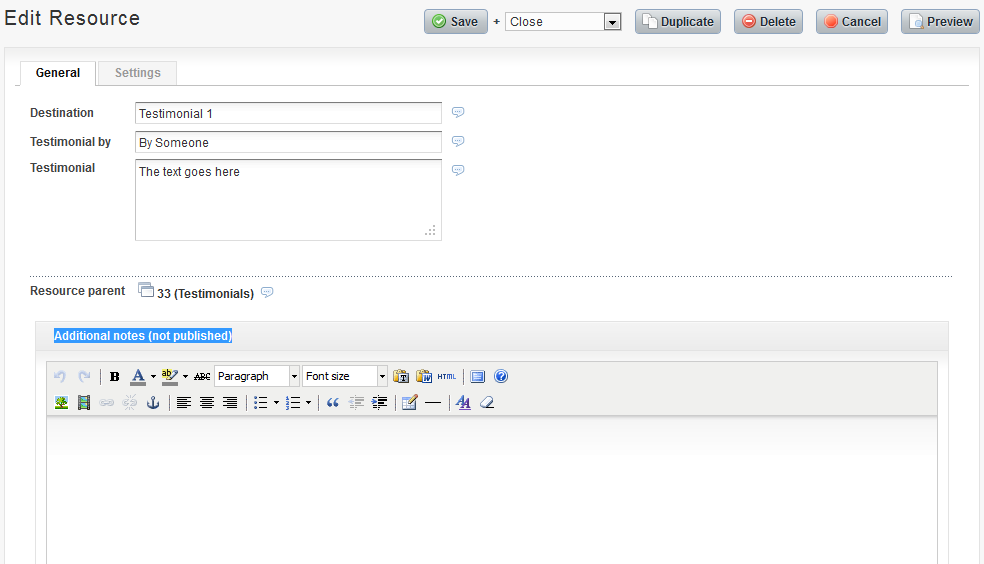
Now you will be able to edit the testimonial, there are really only 4 parts to the page:
Headline :
Add a short quote to act as the headline, perhaps a few words taken from the full testimonial text that gives a flavour of the review.
Testimonial by :
Enter the name, or the initials of the person
Testimonial :
Enter the full text of the review or comments.
In the main section of the text says Additional notes (not published) then the site has been configured just to show the testimonial and you don’t need to fill this section in.
If it is labeled ‘Case Study or Details’ then the site will be configured so people can see the testimonial and then click to see the more details, which will show the text here.
Create a new testimonial or review
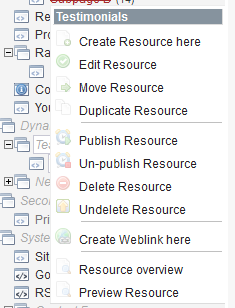
To Create a new testimonial you should put the mouse pointer on the GREY intalic ‘Testimonials’ section in the tree and right click, then select ‘Create resource here’
This will create a new page under the Testimonials section
And that’s all there is to it.
Once you have updated the testimonials, the templates will take these are re-use them across the site for you.